Bedrock Edition Commands: Complete Guide
Overview of all Bedrock Edition commands, how they differ from Java, and tips for using the command system effectively.
How Commands Work in Bedrock
Commands in Minecraft Bedrock Edition let you modify the game world, teleport players, spawn entities, change game rules, and much more. They are entered in the chat window (press T or the chat icon) prefixed with a forward slash. Commands can also be placed in command blocks for automation.
To use commands, cheats must be enabled in the world settings. On servers and Realms, you need operator permissions. Enabling cheats in a survival world disables achievements for that world permanently.
Key Differences from Java Edition
Bedrock Edition commands share most syntax with Java Edition but have several important differences:
- Bedrock uses the
@target selectors like Java (@a,@p,@r,@e,@s) but some selector arguments differ. - NBT data tags are not supported in Bedrock commands. You cannot specify item enchantments or entity data through NBT.
- Bedrock uses
/givewith data values instead of NBT for some item variants. - The
/datacommand does not exist in Bedrock. - Block states in Bedrock use a different syntax:
["state"="value"]instead of Java block state format. - Some commands that exist in Java are missing from Bedrock, including
/data,/attribute,/team, and/bossbar. - Bedrock has unique commands not found in Java, such as
/camerashake,/dialogue, and/playanimation.
Target Selectors
Target selectors let you choose which entities a command affects:
@a- All players@p- Nearest player@r- Random player@e- All entities@s- The entity executing the command (self)
You can filter targets with arguments in square brackets:
@e[type=zombie,r=10]      # All zombies within 10 blocks
@a[scores={kills=5..}]    # All players with 5+ kills
@p[name=Steve]            # Nearest player named Steve
@e[family=monster,c=3]    # 3 closest monsters
Bedrock uses c for count limit while Java uses limit. Bedrock uses r and rm for radius while Java uses distance.
Commonly Used Commands
Here is a quick reference for the most popular Bedrock commands:
/tp- Teleport players or entities/give- Give items to players/fill- Fill regions with blocks/summon- Spawn entities/effect- Apply status effects/gamemode- Change game mode/execute- Run commands with modified context/setblock- Place a single block/clone- Copy blocks from one area to another/kill- Remove entities/clear- Remove items from inventory/scoreboard- Manage scoreboard objectives and scores/tag- Add or remove tags from entities/title- Display text on screen/playsound- Play sounds
Command Blocks
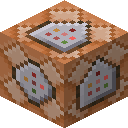
Command blocks are special blocks that execute commands automatically. Bedrock has three types:
- Impulse (orange): Runs once when activated by redstone or when set to Always Active.
- Chain (green): Runs when the command block pointing into it completes. Used to chain multiple commands.
- Repeat (purple): Runs every game tick (20 times per second) while active.
To get a command block, use: /give @s command_block
Command blocks are essential for creating maps, minigames, and automated systems without add-ons.
Useful Tips
- Use Tab completion to auto-fill command names, player names, and block/item IDs.
- Relative coordinates use tilde (~):
~ ~5 ~means current position but 5 blocks higher. - Local coordinates use caret (^):
^ ^ ^5means 5 blocks in front of where you are facing. - Use
/tickingareato keep areas loaded when no player is nearby, which is necessary for always-on farms.
Frequently Asked Questions
Which Java commands are missing from Bedrock Edition?
Bedrock does not include several Java commands, notably /data, /attribute, /team, and /bossbar. In exchange it has its own unique commands that Java lacks, such as /camerashake, /dialogue, and /playanimation, reflecting the two editions' separate command systems.
How are target selector arguments different in Bedrock?
Bedrock uses c for the count limit where Java uses limit, and r and rm for maximum and minimum radius where Java uses distance. The selectors themselves (@a, @p, @r, @e, @s) match Java, but these argument names are a common source of confusion when porting commands.
Do I need to enable anything to use commands in Bedrock?
Yes. Cheats must be turned on in the world settings, and on servers or Realms you need operator permission. Be aware that enabling cheats in a survival world permanently disables achievements for that world.
What are the three command block types in Bedrock?
Bedrock has Impulse (orange) blocks that run once when triggered, Chain (green) blocks that run after the block pointing into them completes, and Repeat (purple) blocks that run every tick while active. You obtain one with /give @s command_block, and they power maps and automated systems without add-ons.
Related Astroworld Resources


Related Guides
Bedrock /give Command: Syntax and ExamplesLearn the Bedrock Edition /give command syntax, item IDs, data values, and practical examples for giving items to players.
7 min readBedrock /tp Command: Teleportation GuideMaster the /tp and /teleport commands in Bedrock Edition with syntax, relative coordinates, and practical teleportation examples.
6 min readBedrock /fill Command: Building Large StructuresUse the /fill command in Bedrock Edition to place, replace, and clear blocks in large areas. Includes syntax, modes, and examples.
7 min readBedrock /summon Command: Spawning EntitiesLearn how to spawn mobs, items, and other entities in Bedrock Edition using the /summon command with positioning and naming.
6 min read